HOKIBET GAME ONLINE PC Tampil sebagai solusi terdepan untuk para penggemar game online, HOKIBET Game Online PC x PHP Installation - Tutorialsbook menawarkan pengalaman bermain yang tak tertandingi. Platform ini menyediakan akses aman dan layanan 24 jam yang memastikan kenyamanan dan keamanan para pemain saat mereka main game online favorit mereka. Dengan integrasi PHP Installation melalui Tutorialsbook, pengguna dapat menikmati proses instalasi yang lebih mudah dan efisien, menjadikan permainan game online PC maupun game online mobile lebih lancar tanpa hambatan teknis.
Sebagai situs resmi, HOKIBET GAME ONLINE PC menghadirkan berbagai fitur unggulan yang dirancang khusus untuk para penggemar game online. Platform ini tidak hanya menawarkan berbagai pilihan game online PC dan game online mobile, tetapi juga menyediakan metode pembayaran yang aman dan cepat. Para pemain dapat menikmati bonus menarik dan kesempatan untuk mendapatkan maxwin yang besar, menambah daya tarik bermain di HOKIBET. Semua ini didukung oleh sistem yang stabil dan responsif, memastikan setiap sesi permainan berlangsung dengan lancar.
Pengalaman bermain di hokibet game online pc menjanjikan kepuasan dengan berbagai tips dan strategi yang dapat diterapkan untuk meningkatkan peluang menang. Dengan sistem RTP yang adil dan kebijakan fair play yang ketat, pemain dapat merasa yakin bahwa mereka bermain di lingkungan yang jujur. HOKIBET GAME ONLINE PC mengundang Anda untuk mengeksplorasi berbagai permainan yang ditawarkan, menjanjikan pengalaman bermain yang mengasyikkan dan penuh tantangan. Jangan lewatkan kesempatan untuk merasakan sensasi bermain game online yang berbeda dan lebih mendebarkan.
In this tutorial, you will run how to install PHP in your system step-by-step guide with screenshots.
PHP Installation: PHP doesn’t come along with the windows operating system. In order to install PHP, we are suggesting you to install AMP ( Apache, MySQL, PHP) software stack. Although you can install these softwares individually as well. AMP is available for almost all operating systems.
There are many AMP versions are available in the market as given below.
- WAMP for Windows
- LAMP for Linux
- MAMP for MAC OS X
- SAMP for Solaris
- FAMP for free BSD
- XAMPP (Cross, Apache, MySql, PHP, Perl): This software stack is for cross-platform. This includes some additional software Filezilla, Open SSL, Mercury mail, etc.
If you are using windows and you don’t want other software like Perl and other features of XAMPP then you can go with WAMP for Windows. Similarly, you can use LAMP and MAMP if you are using Linux and Mac OS X respectively.
How to install XAMPP server in Windows
In this tutorial, we are going to learn how to install the XAMPP server in Windows step by step with screenshots.
Step 1: Download the XAMPP server from the official site.

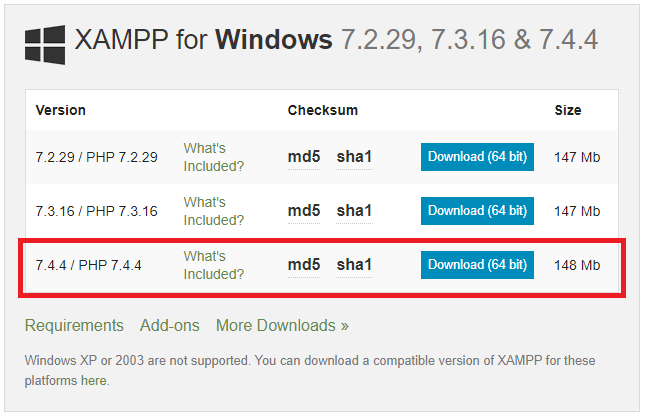
Step 2: After downloading XAMPP from the official site, double click on the downloaded file
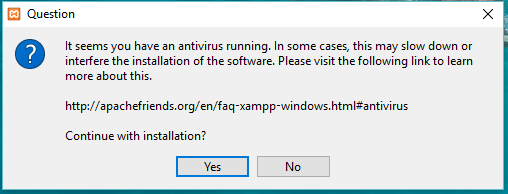
If Antivirus is installed on your computer, you may get a wording message like below. Simply click on Yes.
Now click on the Next button.
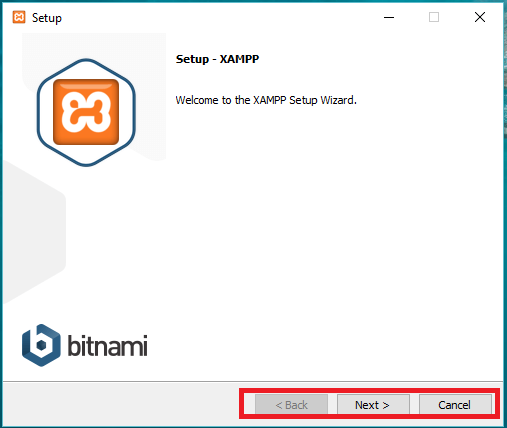
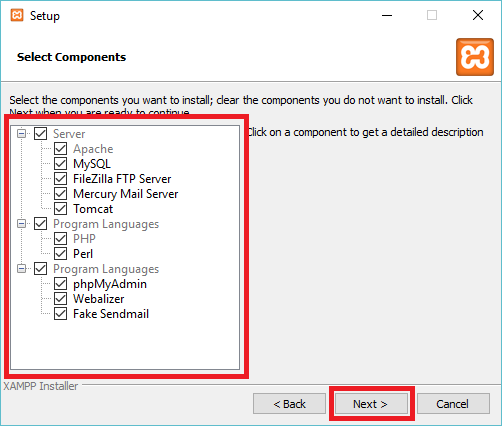
Step 3: Here, you can select the component you want to install in your system and click Next.
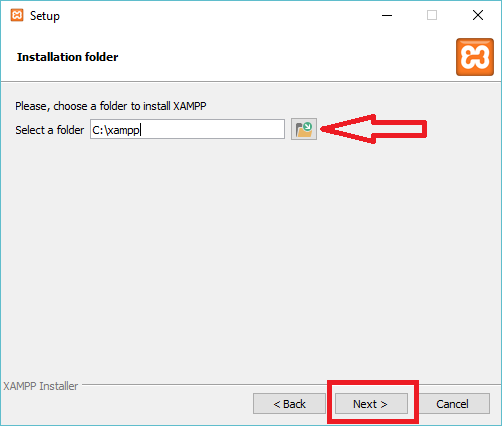
Step 4: Now, you select the folder where you want to install XAMPP server and click on Next button. I am leaving the default value.
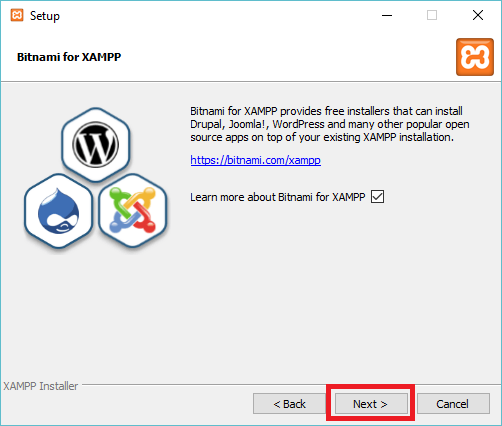
Step 5: Click on Next and move ahead.
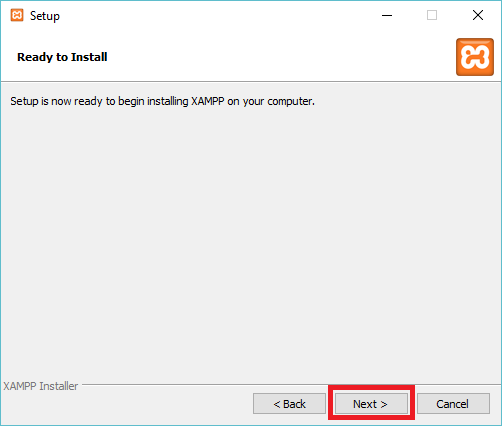
Step 6: XAMPP is now ready to install, so click on the Next button and install XAMPP.
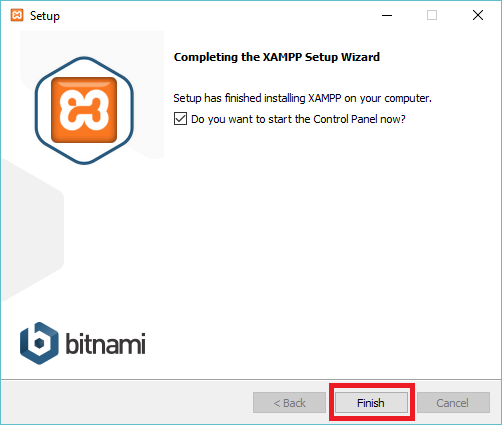
Step 7: A finish will appear upon successful completion of installation. Click the Finish button.
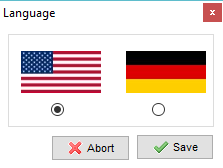
Step 8: On the next screen, Choose your preferred language.
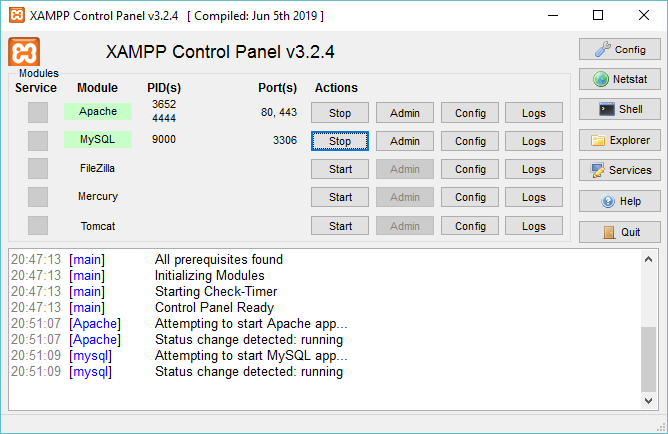
Step 9: XAMPP is now ready to use. You can now start Apache and MySql and run the PHP program on localhost.
We will learn in the next tutorial how to run a PHP program on localhost.
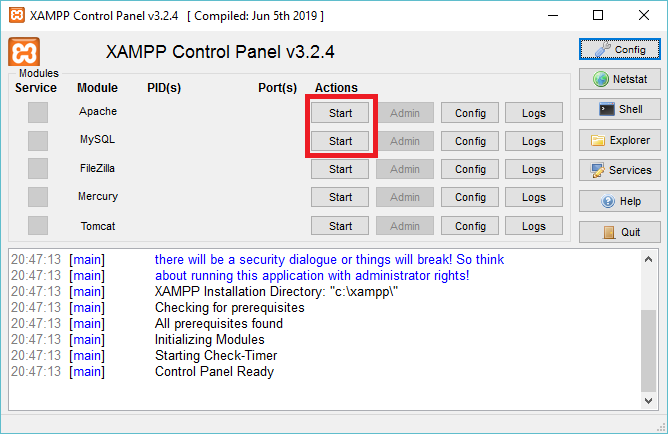
Step 10: In case there is no error, Apache and MySql will successfully run in XAMPP.